




How DHCP Works ?
Imagine walking into a hotel.
You arrive at the front desk and say:
I need a room.
The receptionist checks what is available, gives you a room number, tells you how long you can use it, and gives you a few other details:
Room: 412
Gateway: Main Lobby
DNS: Ask Reception
Lease: 2 nights
Your laptop does something surprisingly similar every time it joins a network.
It asks:
Can somebody give me an IP address?
The service that usually answers is:
DHCPor:
Dynamic Host Configuration ProtocolDHCP is one of those technologies you use constantly without noticing.
Connect to Wi-Fi at home.
Join the office network.
Plug a server into Ethernet.
Your device usually receives its network configuration automatically.
DHCP is the reason.
Before DHCP, Someone Had to Configure Everything
Every device on an IP network needs information such as:
IP address
Subnet mask
Default gateway
DNS server
Without DHCP, an administrator might configure each computer manually.
Imagine an office with 500 computers.
Computer 1:
192.168.10.21Computer 2:
192.168.10.22Computer 3:
192.168.10.23and so on.
Now imagine somebody accidentally gives two computers the same address.
You get an:
IP conflictOr someone moves a laptop to another office but forgets to change its network configuration.
Manual IP management works for a few machines.
It becomes painful very quickly.
DHCP automates the whole process.
The Moment Your Laptop Joins Wi-Fi
Suppose you connect your laptop to:
Office-WiFiAt this point your laptop may not know:
What network am I on?
What IP address should I use?
Where is the router?
Which DNS server should I ask?
It cannot simply choose:
192.168.1.50because another device might already be using it.
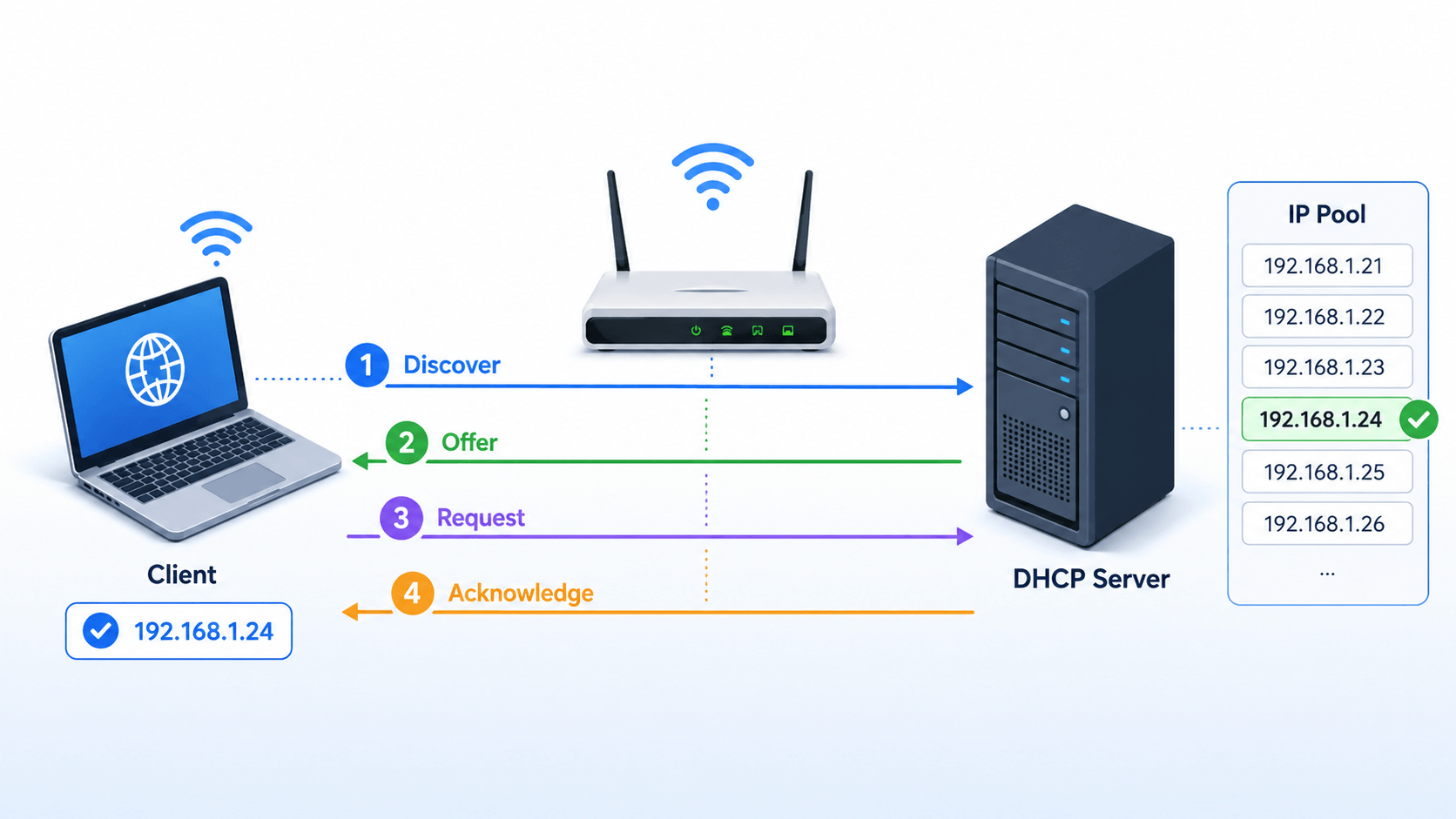
So it begins a small conversation with the network.
That conversation is commonly remembered as:
DORAwhich stands for:
Discover
Offer
Request
Acknowledge
Those four steps explain the heart of DHCP.
Step 1: DHCP Discover
Your laptop has joined the network but does not yet have an IPv4 address it can safely use.
So it effectively shouts:
Is there a DHCP server here?
This is the:
DHCPDISCOVERmessage.
The important part is that your laptop does not yet know where the DHCP server is.
So it sends the request as a broadcast.
Conceptually:
New Laptop
    |
    | "Anybody here running DHCP?"
    |
    +----> Everyone on local network
Most devices ignore it.
The DHCP server listens.
Step 2: DHCP Offer
The DHCP server receives the request.
It looks at its available address pool.
Maybe the network has:
192.168.10.100
to
192.168.10.200
available for clients.
The server chooses one:
192.168.10.137and replies:
I can offer you 192.168.10.137.
That reply is:
DHCPOFFERBut the offer usually contains much more than just the IP address.
It may include:
IP Address:
192.168.10.137

Subnet Mask:
255.255.255.0

Gateway:
192.168.10.1

DNS:
192.168.10.10

Lease Time:
8 hours
So DHCP is really providing a complete network configuration package.
Step 3: DHCP Request
Now the laptop says:
Yes, I would like that address.
This is the:
DHCPREQUESTmessage.
Why does the client have to request an address that was already offered?
Because there may be more than one DHCP server.
Imagine:
DHCP Server A
offers 192.168.10.137

DHCP Server B
offers 192.168.10.181
The client chooses one.
Its request effectively tells the network:
I am accepting this offer.
The other DHCP server can return its unused address to its pool.
Step 4: DHCP Acknowledge
Finally, the DHCP server confirms:
The address is yours.
This message is:
DHCPACKNow the laptop can configure its network interface.
The full story looks like:
Client                     DHCP Server

  |                             |
  |------ DHCP Discover ------->|
  |                             |
  |<------- DHCP Offer ---------|
  |                             |
  |------ DHCP Request -------->|
  |                             |
  |<--------- DHCP ACK ---------|
  |                             |
Or simply:
D O R AAfter that, your laptop can begin normal network communication.
DHCP Does Not Give You the Address Forever
This is an important detail.
DHCP usually does not say:
192.168.10.137 is yours forever.
It says:
You may use 192.168.10.137 for the next eight hours.
This is called a:
LeaseWhy use leases?
Because devices come and go.
Imagine a coffee shop.
Hundreds of people may connect during the day.
If every phone permanently owned an IP address after connecting once, the address pool would quickly run out.
Instead:
Phone connects
     ↓
Gets IP for limited time
     ↓
Phone leaves
     ↓
Lease eventually expires
     ↓
IP becomes available again
The network can recycle addresses.
Your Device Usually Renews Before the Lease Expires
Suppose your lease is:
8 hoursYour computer does not normally wait until exactly eight hours and suddenly lose the address.
It tries to renew the lease earlier.
Conceptually:
Lease begins
    |
    |---------- 50% ----------
    |
Client:
"Can I keep this address?"
If the server says yes, the lease timer starts again.
Most users never notice this process.
Your laptop may keep the same DHCP address for days or weeks because it continually renews it.
This Is Why Your Home IP Often Looks Permanent
At home, you may notice that your laptop almost always receives:
192.168.1.15even though DHCP is dynamic.
There are several reasons.
The router remembers recent leases.
The same device reconnects before its old lease has been reused.
Some DHCP servers prefer giving a device its previous address when possible.
So:
Dynamicdoes not necessarily mean:
Different every timeIt simply means the address is managed automatically and is not permanently assigned by the client itself.
Static IP vs DHCP
A static IP is manually fixed.
For example:
Database Server
192.168.10.20
You expect it to remain there.
DHCP is dynamic:
Laptop
192.168.10.137 today
possibly something else later
Static addresses are useful for things that other systems need to find reliably:
Servers
Routers
Printers
Network devices
DHCP is excellent for:
Laptops
Phones
Tablets
Guest devices
Workstations
But there is also a useful middle ground.
DHCP Reservations
Suppose you have a printer.
You want it always to receive:
192.168.10.50but you do not want to manually configure networking on the printer itself.
You can create a:
DHCP ReservationThe DHCP server records something like:
Printer MAC address
AA:BB:CC:DD:EE:FF

Always give:
192.168.10.50
Now the printer still uses DHCP.
But it always receives the same address.
This is extremely common for:
Printers
Cameras
Servers
Access points
Network appliances
How Does DHCP Know Which Device Is Which?
One common identifier is the network interface's:
MAC addressFor example:
AA:BB:CC:DD:EE:FFThe DHCP server can use client identifiers and hardware information to keep track of leases.
Conceptually:
Device Identity
      ↓
DHCP Lease Database
      ↓
Assigned IP
The exact identification behavior can vary, especially with modern privacy features that randomize Wi-Fi MAC addresses.
DHCP Usually Gives More Than Four Settings
Most people think DHCP means:
Give me an IP.But DHCP can distribute many kinds of configuration.
Common options include:
IP address
Subnet mask
Default gateway
DNS servers
Domain name
NTP servers
Lease duration
More specialized networks can distribute additional settings.
This makes DHCP a powerful configuration service, not merely an address dispenser.
Why the Default Gateway Matters
Suppose your laptop receives:
IP:
192.168.10.137

Subnet:
255.255.255.0
That tells it how to communicate with nearby machines.
But what happens when you want to visit:
pocketx.appon the internet?
That destination is not on the local network.
So your computer needs to know:
Where should I send traffic destined outside this network?
DHCP provides:
Default Gateway:
192.168.10.1
which is usually your router.
The path becomes:
Laptop
   ↓
Default Gateway
   ↓
Internet
Without that gateway configuration, you might be able to talk to local machines but not reach the wider internet.
DNS Is Another Critical DHCP Setting
Your computer can technically communicate using IP addresses.
But humans prefer:
pocketx.appinstead of something like:
203.x.x.xSo the computer needs a DNS resolver.
DHCP might provide:
DNS:
192.168.10.10
or public resolvers depending on the network.
Then:
pocketx.app
     ↓
DNS
     ↓
IP address
So when DHCP breaks, users may think:
The internet is broken.
when the real problem may simply be that they received no valid DNS configuration.
What Happens If There Is No DHCP Server?
You connect your laptop.
It sends:
DHCP DiscoverNobody answers.
It tries again.
Still nothing.
Now the operating system has a problem.
On some IPv4 systems, the device may assign itself an address from the link-local range:
169.254.x.xThis is often a useful troubleshooting clue.
If you see:
169.254.23.81when you expected:
192.168.1.xthere is a good chance DHCP failed.
The device basically said:
Nobody gave me an address, so I made up a local one so I can at least try talking to nearby devices.
It normally will not provide ordinary routed internet access.
DHCP and Routers at Home
In a typical home network, your Wi-Fi router performs several jobs at once.
It may be:
Router
Firewall
Wi-Fi Access Point
NAT Gateway
DNS Forwarder
DHCP Server
So when your phone joins Wi-Fi:
Phone
   ↓
Wi-Fi Router
   ↓
DHCP
   ↓
192.168.1.25
The little box in your house is doing much more than simply providing wireless signal.
Business Networks Often Separate These Roles
In a larger network:
Routermay be one device.
Firewallanother.
Wi-Fi controlleranother.
And:
DHCP Servermay be a Windows or Linux server somewhere else.
That creates another problem.
DHCP Discover is normally a local broadcast.
Routers generally do not forward broadcasts between networks.
So how can one central DHCP server provide addresses to many VLANs?
Enter the DHCP Relay
Imagine:
VLAN 10
VLAN 20
VLAN 30
but the DHCP server lives on:
VLAN 100The router or Layer 3 switch can act as a:
DHCP RelayIt receives the local DHCP request and forwards it to the central server.
Conceptually:
Laptop
   ↓
DHCP Discover
   ↓
VLAN Router
   ↓
DHCP Relay
   ↓
Central DHCP Server
The server examines information from the relay to determine which address pool should be used.
Then:
VLAN 10
→ 192.168.10.x

VLAN 20
→ 192.168.20.x

VLAN 30
→ 192.168.30.x
One DHCP server can therefore serve many networks.
A Real Office Example
Imagine an office building.
The network is divided like this:
Employees
192.168.10.0/24

Servers
192.168.20.0/24

VoIP Phones
192.168.30.0/24

Guest Wi-Fi
192.168.40.0/24
When an employee laptop connects:
DHCP server
→ Employee pool
→ 192.168.10.145
A phone connects:
DHCP server
→ VoIP pool
→ 192.168.30.52
A guest connects:
DHCP server
→ Guest pool
→ 192.168.40.188
DHCP quietly makes the network organize itself.
DHCP Can Also Go Very Wrong
Suppose someone brings a cheap home router into the office.
They plug its LAN port into the company network.
The router has its own DHCP server enabled.
Now there are two DHCP servers.
The real company server says:
Your gateway is:
192.168.10.1
The accidental router says:
Your gateway is:
192.168.0.1
Some computers accept one.
Some accept the other.
Suddenly:
Half the office works.
Half does not.
This is called a:
Rogue DHCP Serverand it can create very confusing network failures.
Attackers Can Abuse DHCP Too
A malicious DHCP server could attempt to give clients incorrect configuration.
For example:
Default Gateway:
Attacker-controlled system
or:
DNS Server:
Attacker-controlled DNS
Now traffic could potentially be redirected or observed.
Enterprise switches therefore often support protections such as:
DHCP Snoopingwhich helps control which switch ports are allowed to send trusted DHCP server responses.
Even something as ordinary as assigning IP addresses has security implications.
DHCP Uses UDP
DHCP normally operates over:
UDPusing IPv4 ports:
Server: 67
Client: 68
Why UDP?
At the beginning of the conversation, the client does not yet have a fully configured network identity.
DHCP therefore needs a lightweight protocol that can operate during this awkward bootstrap stage.
You usually do not need to remember the port numbers as a general user, but they are very useful during firewall and packet-capture troubleshooting.
Watching DHCP Is Surprisingly Interesting
If you capture network traffic while connecting a machine, you can actually see the conversation.
Something like:
DHCP Discover
DHCP Offer
DHCP Request
DHCP ACK
A process that feels instant to the user becomes visible as a small negotiation between machines.
That is one of the enjoyable things about networking.
Behind:
Wi-Fi connected.
there may be several protocols quietly cooperating:
Wi-Fi authentication
DHCP
ARP
DNS
Routing
TLS
all within seconds.
DHCP Is Not the Same in IPv6
IPv6 changes the story somewhat.
IPv6 devices can configure addresses using mechanisms such as:
SLAACor:
DHCPv6With SLAAC, a device can learn network information from router advertisements and generate an address without traditional DHCP assigning that address in the same IPv4-style way.
So IPv6 networks may use:
SLAACor:
DHCPv6or a combination depending on the design.
The basic goal remains the same:
Get the device enough network configuration to communicate.
Why DHCP Matters More Than It Looks
Imagine manually configuring every phone in an airport.
Every laptop in a university.
Every employee workstation in a company.
Every smart TV in a hotel.
Without DHCP, networking at today's scale would be miserable.
Instead:
Device arrives
     ↓
Asks for configuration
     ↓
DHCP provides it
     ↓
Device starts communicating
The process often takes only a few seconds.
That simplicity is easy to underestimate.
The Entire Process in One Picture
When your laptop joins a normal IPv4 network:
        NEW DEVICE
            |
            | 1. DISCOVER
            v
       DHCP SERVER
            |
            | 2. OFFER
            v
          CLIENT
            |
            | 3. REQUEST
            v
       DHCP SERVER
            |
            | 4. ACK
            v
          CLIENT
Now the client knows:
Who am I?
→ IP address

Which devices are local?
→ Subnet mask

How do I leave this network?
→ Default gateway

How do I find names?
→ DNS server

How long can I use this configuration?
→ Lease time
That is DHCP.
Final Thoughts
DHCP is not glamorous.
Nobody buys a laptop because:
It has amazing DHCP support.
Yet without it, everyday networking would become dramatically more annoying.
Every time you:
Join Wi-Fi
Plug into Ethernet
Connect a phone
Start a VM
Boot a workstation
DHCP may quietly negotiate an identity for your device.
The process is only four famous steps:
Discover
Offer
Request
Acknowledge
or:
DORABut those four messages solve a surprisingly big problem:
How do millions of devices join networks without humans manually configuring every one of them?
The answer is a tiny automated conversation happening in the background.
Your laptop asks:
Is there an address for me?
The network replies:
Yes. Take this one. Here is your router, here is your DNS server, and you can keep it for a while.
And a second later, you are online.