







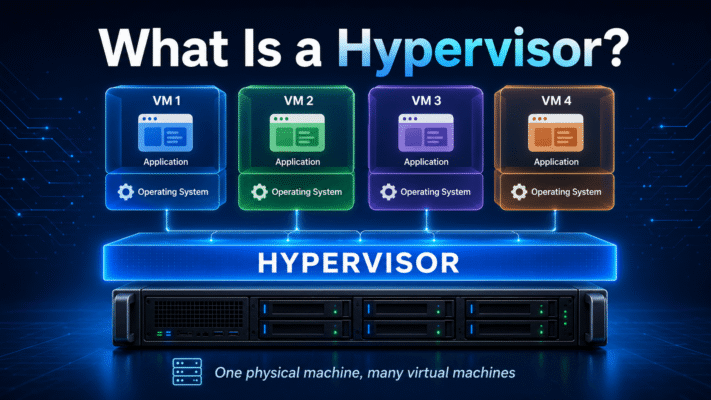
What Is a Hypervisor?
Imagine you have one powerful computer.
It has:
- a fast CPU,
- plenty of RAM,
- a large SSD,
- and maybe a good network connection.
Now imagine you want that one physical machine to behave like five separate computers.
One machine runs Linux.
Another runs Windows.
Another hosts a test server.
Another runs a database.
Another is used for development.
Without virtualization, you would normally need five physical computers.
With virtualization, one physical computer can pretend to be many.
The software that makes this possible is called a:
HypervisorA hypervisor is the layer that creates and manages virtual machines.
You can think of it as a hotel manager for computers.
The physical server is the hotel.
The CPU, memory, storage, and network are the rooms and resources.
The virtual machines are the guests.
The hypervisor decides:
Which VM gets how much RAM?

Which VM gets CPU time?

Which VM gets storage?

Which VM gets network access?

Can one VM interfere with another?
That is the basic idea.
Before Virtualization
In the old model, one server often ran one major workload.
For example:
Physical Server 1
    ↓
Web Server
Physical Server 2
↓
DatabasePhysical Server 3
↓
Mail ServerPhysical Server 4
↓
File ServerThis worked, but it created a problem.
Most servers were not using all their resources all the time.
One machine might have:
32 GB RAMbut only use:
6 GBAnother might have 16 CPU cores but spend most of the day nearly idle.
So companies ended up buying a lot of expensive hardware that was mostly waiting around.
Virtualization changed that.
One Physical Server, Many Virtual Servers
With a hypervisor, a single physical server might look like this:
Physical Server
│
├── VM 1 → Web Server
├── VM 2 → Database
├── VM 3 → Mail Server
├── VM 4 → Development
└── VM 5 → Monitoring
Each virtual machine behaves almost like a real computer.
It can have its own:
- Operating system
- CPU allocation
- RAM allocation
- Virtual disk
- Network adapter
- IP address
- Applications
To the operating system inside the VM, it looks like it has its own computer.
But underneath, everything is sharing the same physical hardware.
So What Exactly Does the Hypervisor Do?
Suppose the physical server has:
16 CPU cores
64 GB RAM
2 TB SSD
The hypervisor might divide those resources like this:
VM 1
4 CPU
8 GB RAM
100 GB disk

VM 2
8 CPU
24 GB RAM
500 GB disk

VM 3
2 CPU
4 GB RAM
50 GB disk

VM 4
2 CPU
8 GB RAM
200 GB disk
The hypervisor keeps track of all of it.
Conceptually:
             Virtual Machines
                   │
         ┌─────────┼─────────┐
         │         │         │
       VM 1      VM 2      VM 3
         │         │         │
         └─────────┼─────────┘
                   │
              Hypervisor
                   │
                   ▼
          Physical Hardware
Without the hypervisor, all those operating systems would fight over the same hardware.
Why Do We Even Need Virtual Machines?
There are many reasons.
Suppose you are a developer.
Your laptop runs Windows, but you need to test an application on Debian Linux.
Instead of buying another computer, you create a Linux VM.
Or imagine you run a company.
You need:
ERP Server
Database Server
Backup Server
Monitoring Server
VPN Server
Instead of buying five machines, you might run all five as VMs on one powerful server.
Or imagine a cloud provider.
AWS, Azure, Google Cloud, and other providers need to divide enormous physical servers among thousands of customers.
Virtualization makes that possible.
There Are Two Main Types of Hypervisors
Hypervisors are generally divided into two categories:
Type 1and:
Type 2The difference is mainly about where the hypervisor sits.
Type 1 Hypervisor
A Type 1 hypervisor runs directly on the physical hardware.
There is no normal desktop operating system underneath it.
The structure looks like this:
Virtual Machines
       ↓
Type 1 Hypervisor
       ↓
Physical Hardware
Examples include:
- VMware ESXi
- Microsoft Hyper-V Server / Hyper-V role in server environments
- Xen
- KVM-based virtualization platforms such as Proxmox VE
- Nutanix AHV
A Type 1 hypervisor is often called a:
Bare-metal hypervisorbecause it runs directly on the bare hardware.
Think of Type 1 Like an Apartment Building
Imagine you own an apartment building.
The building was designed from the beginning to contain many independent apartments.
Each tenant has:
Their own room
Their own locks
Their own utilities
Their own space
The building itself is designed around multi-tenant use.
That is similar to Type 1 virtualization.
The whole machine exists mainly to host virtual machines.
What Happens When a Type 1 Hypervisor Starts?
A typical dedicated virtualization server might boot like this:
Power On
   ↓
Hypervisor starts
   ↓
Storage initializes
   ↓
Network initializes
   ↓
Virtual machines start
There is no Windows desktop sitting underneath the virtualization layer.
The hypervisor itself controls the hardware.
That gives it a lot of control.
Why Type 1 Is Popular on Servers
Because the hypervisor talks directly to the hardware, Type 1 systems are generally well suited for:
- Production servers
- Data centers
- Cloud infrastructure
- Virtual desktop environments
- High availability clusters
- Large VM environments
They are designed for running virtual machines continuously.
A virtualization host might run for months without anyone opening a traditional desktop interface.
Type 2 Hypervisor
A Type 2 hypervisor works differently.
It runs as an application inside another operating system.
The structure looks like this:
Virtual Machines
       ↓
Type 2 Hypervisor
       ↓
Host Operating System
       ↓
Physical Hardware
Examples include:
- Oracle VirtualBox
- VMware Workstation
- VMware Fusion
- Parallels Desktop
- QEMU in hosted configurations
Suppose your laptop runs Windows.
You install VirtualBox.
Then you create an Ubuntu VM.
The layers are:
Ubuntu VM
   ↓
VirtualBox
   ↓
Windows
   ↓
Laptop Hardware
Windows is still the main operating system.
VirtualBox is just another application.
Think of Type 2 Like Renting a Room Inside Your House
Imagine you already have a normal house.
Then you decide to turn one room into a guest room.
The house was not designed primarily as a hotel.
It is still your personal house.
You are simply hosting someone inside it.
That is similar to Type 2 virtualization.
Your laptop remains:
Your normal Windows/macOS/Linux computerand the VM runs on top of it.
A Real-World Example
Suppose you are using Windows 11.
You want to learn Linux.
You install VirtualBox and create a Debian VM.
Now your system looks roughly like this:
Debian VM
    ↓
VirtualBox
    ↓
Windows 11
    ↓
Laptop
Windows still controls:
- Display
- Keyboard
- Wi-Fi
- USB devices
- Power management
- Hardware drivers
VirtualBox asks Windows for the resources it needs.
That makes Type 2 very convenient.
The Main Difference
The easiest way to remember it is:
Type 1:
Hypervisor runs on hardware.

Type 2:
Hypervisor runs on another operating system.
That is really the central distinction.
Type 1 vs Type 2
| Area | Type 1 | Type 2 |
|---|---|---|
| Runs on | Physical hardware | Host operating system |
| Other name | Bare-metal hypervisor | Hosted hypervisor |
| Typical use | Servers and data centers | Desktop and development |
| Performance | Usually better | Usually slightly more overhead |
| Reliability | Better suited for 24/7 workloads | Depends on host OS |
| Setup | More infrastructure-focused | Usually easier |
| User experience | Admin/server-oriented | Desktop-friendly |
| Examples | ESXi, Proxmox, Xen, Hyper-V | VirtualBox, VMware Workstation, Parallels |
Why Type 1 Usually Performs Better
Consider Type 2 first.
A VM wants to read from disk.
The request may travel through several layers:
VM
 ↓
Type 2 Hypervisor
 ↓
Host Operating System
 ↓
Storage Driver
 ↓
Physical SSD
With Type 1, the path is more direct:
VM
 ↓
Hypervisor
 ↓
Physical SSD
Fewer layers generally mean:
- Less overhead
- More predictable performance
- Better control
- Better resource scheduling
The difference is not always dramatic for normal desktop use, but at data-center scale it matters.
But Type 2 Has One Huge Advantage: Convenience
Suppose you just want to experiment with Linux.
Installing a bare-metal virtualization server would be excessive.
With Type 2, you can simply:
Install VirtualBox
Download Ubuntu
Create VM
Start learning
You do not need a dedicated machine.
That is why Type 2 is excellent for:
- Students
- Developers
- Testing
- Running another OS occasionally
- Software demonstrations
- Security labs
Type 1 Is Usually Better for Production
Imagine your company runs an ERP system.
The ERP VM needs to be online:
24 hours a day
7 days a week
You probably do not want it running inside someone's Windows desktop.
If Windows restarts for an update:
ERP goes offline.If the user accidentally shuts down the PC:
ERP goes offline.If a desktop application crashes the host badly enough:
ERP may go offline.Instead, you use a dedicated Type 1 host.
For example:
Physical Server
      ↓
Proxmox VE
      ↓
ERP VM
Database VM
Backup VM
Monitoring VM
The server exists specifically to run those VMs.
Virtual Machines Are Isolated
One of the biggest benefits of virtualization is isolation.
Suppose you have:
VM 1 → Website
VM 2 → Database
VM 3 → Development
If someone crashes the development VM:
VM 3 crashesbut ideally:
VM 1 continues
VM 2 continues
The hypervisor keeps the environments separated.
This is one reason virtualization became so important for hosting companies.
You Can Run Different Operating Systems Together
A single server could theoretically run:
Windows Server
Ubuntu
Debian
Rocky Linux
FreeBSD
at the same time.
Like this:
           Hypervisor
      ┌──────┼──────┐
      │      │      │
   Windows Linux  FreeBSD
They do not need to know that the others exist.
Snapshots Are Another Powerful Feature
Suppose you are about to install a risky software update.
With virtualization, you may create a:
Snapshotbefore the update.
The workflow becomes:
Working VM
   ↓
Create snapshot
   ↓
Install update
   ↓
Something breaks
   ↓
Restore snapshot
A few minutes later, you are back where you started.
That is extremely useful for:
- Testing
- Development
- Server upgrades
- Lab environments
But snapshots are not a replacement for proper backups.
Moving a Server Becomes Easier Too
With physical servers, moving an application used to mean:
Buy new server
Install OS
Install applications
Copy data
Configure everything
Test
Switch traffic
With virtualization, an entire server may exist primarily as virtual disk files plus configuration.
That makes moving workloads between physical hosts much easier.
In advanced environments, you can even migrate a running VM between hosts with very little downtime.
This Is How Cloud Computing Became Practical
When you create a virtual machine in a cloud platform, you are not normally getting a whole dedicated physical server.
Instead:
Huge Physical Server
      ↓
Hypervisor
      ↓
Customer VM A
Customer VM B
Customer VM C
Customer VM D
Each customer feels like they have their own server.
The hypervisor keeps the environments separated and shares the physical resources.
Virtualization is one of the foundations that made modern cloud computing possible.
Does a VM Get a Real CPU?
Not exactly.
The VM usually sees something called a:
vCPUor virtual CPU.
Suppose the physical machine has:
16 physical CPU coresThe hypervisor might provide:
VM 1 → 4 vCPU
VM 2 → 4 vCPU
VM 3 → 8 vCPU
The hypervisor schedules those virtual CPUs onto the real CPU cores.
You can think of it like booking time on the physical processors.
Does Every VM Need Dedicated RAM?
The hypervisor assigns memory to each VM.
For example:
Physical RAM: 64 GB

VM 1: 16 GB
VM 2: 8 GB
VM 3: 16 GB
VM 4: 8 GB
The remaining memory is available for the hypervisor and other workloads.
Some platforms support more advanced memory management, but the basic concept is simple:
Physical RAM
      ↓
Hypervisor divides it
      ↓
VMs receive virtual RAM
What About Storage?
A VM usually sees a virtual disk:
/dev/sdaor:
C:But that disk may actually be a file or logical volume stored somewhere on the physical server.
For example:
VM thinks:
500 GB disk
while the hypervisor knows:
/var/lib/vm/100/disk.qcow2or some other storage backend.
The VM does not need to know.
What About Networking?
The same idea applies to networks.
A VM may see:
eth0and think:
I have a network card.But it is usually a:
Virtual Network InterfaceThe hypervisor connects it to a virtual switch.
Conceptually:
VM 1 ─┐
VM 2 ─┼── Virtual Switch ── Physical NIC ── Network
VM 3 ─┘
This lets dozens of VMs share the same physical network adapter.
Hypervisors Make Hardware More Flexible
Without virtualization:
One server
=
one operating system
With virtualization:
One server
=
many operating systems
That simple change transformed the server industry.
Is Docker the Same as a Hypervisor?
No.
Containers and virtual machines solve similar problems but work differently.
A VM includes its own operating system kernel.
VM
├── Applications
├── Libraries
└── OS Kernel
A container usually shares the host kernel:
Container
├── Applications
└── Libraries

Host Linux Kernel
So:
VM → virtualizes hardware

Container → virtualizes the operating environment
Containers are usually lighter.
VMs usually provide stronger separation and can run entirely different operating systems.
A Simple VM vs Container Comparison
| Virtual Machine | Container |
|---|---|
| Has its own OS kernel | Shares host kernel |
| Heavier | Lighter |
| Starts slower | Starts quickly |
| Can run different OS families | Usually tied to host kernel family |
| Strong isolation | Process-level isolation |
| Managed by hypervisor | Managed by container runtime |
In modern infrastructure, both are often used together.
For example:
Physical Server
     ↓
Hypervisor
     ↓
Linux VM
     ↓
Docker/Kubernetes
     ↓
Containers
What About Proxmox?
Proxmox VE is a good example of a server virtualization platform.
You install it directly on a physical machine.
Then create:
Windows VM
Linux VM
Database VM
Docker VM
Kubernetes VM
It uses Linux technologies such as KVM for full virtual machines and LXC for containers.
From a practical administrator's point of view, it behaves like a Type 1 virtualization platform because the machine is dedicated to hosting virtualized workloads.
What About VMware Workstation?
VMware Workstation is a classic Type 2 example.
You might have:
Windows Laptop
      ↓
VMware Workstation
      ↓
Ubuntu VM
The laptop still functions normally.
You can open Chrome, Word, Visual Studio, and your VM at the same time.
Perfect for development.
Not usually how you would design a serious production data center.
What About VirtualBox?
VirtualBox is similar.
You install it on:
Windows
macOS
Linux
and create virtual machines.
It is excellent for learning virtualization because it is easy to experiment with.
You can create:
Debian Server
Ubuntu Server
Windows
FreeBSD
without changing your main computer.
What About Hyper-V?
Hyper-V is slightly more confusing because Microsoft integrates virtualization deeply into Windows.
In server and dedicated virtualization use, Hyper-V acts much more like a Type 1 architecture even though administrators interact with Windows tooling.
The important lesson for beginners is not to obsess too much over marketing labels.
Instead ask:
Is the machine primarily a virtualization host?

Or is virtualization running as a normal desktop application?
That usually tells you which model you are dealing with.
Type 1 Is Not Automatically Better for Everything
Suppose you want to test Debian for thirty minutes.
A Type 1 server would be inconvenient.
You would need:
Separate hardware
Network setup
Storage setup
Hypervisor installation
Management access
Instead:
Install VirtualBoxand you are done.
So the correct question is not:
Which hypervisor type is better?
It is:
Which one fits the job?
Use Type 1 When
Type 1 makes sense when you are building:
- Production servers
- Data centers
- Private clouds
- Virtualization clusters
- High availability systems
- Enterprise environments
- Long-running infrastructure
For example:
Office Server
   ↓
Proxmox
   ↓
ERP
Database
File Server
VPN
Monitoring
Use Type 2 When
Type 2 makes sense when you are:
- Learning Linux
- Testing software
- Developing applications
- Running a second OS occasionally
- Building a lab
- Demonstrating software
- Testing installers
For example:
Developer Laptop
    ↓
Windows
    ↓
VirtualBox
    ↓
Debian VM
The Cost of Virtualization
Virtualization is extremely efficient today, but it is not completely free.
There is still some overhead.
The hypervisor must manage:
CPU scheduling
Memory mapping
Disk access
Network traffic
Device virtualization
Modern CPUs include hardware virtualization features that make this much faster.
Intel has technologies such as:
VT-xand AMD has:
AMD-VThese allow hypervisors to run guest operating systems efficiently.
Can You Put Too Many VMs on One Server?
Absolutely.
Suppose you have:
16 CPU cores
64 GB RAM
and create:
20 VMseach configured with:
8 CPU
16 GB RAM
On paper that looks like:
160 virtual CPU
320 GB virtual RAM
on a machine with much less physical capacity.
Some overcommitment can be useful because VMs rarely use everything simultaneously.
But too much creates:
Slow performance
Disk congestion
Memory pressure
CPU contention
The hypervisor cannot magically create unlimited physical resources.
Virtualization Is Really About Sharing
At its core, a hypervisor solves one big problem:
How can several independent computers
share one physical computer safely?
That is all virtualization really is.
The implementation is sophisticated.
The idea is simple.
A Small Story
Imagine a small company in 2005.
It needs five services:
Accounting
Email
Website
File storage
Database
The IT administrator buys five servers.
They occupy a rack.
They consume electricity.
They produce heat.
They need five power connections.
Five network cables.
Five operating-system installations.
But each server uses perhaps:
10–20%of its actual capacity.
Then virtualization arrives.
The company buys one powerful server.
Now:
Physical Server
│
├── Accounting VM
├── Email VM
├── Website VM
├── File Server VM
└── Database VM
Suddenly:
5 physical machinesbecame:
1 physical machine
+
5 virtual machines
That change saved:
- Space
- Electricity
- Cooling
- Hardware cost
- Maintenance time
Now scale that idea from five servers to millions.
That is why virtualization changed the computing industry.
But There Is One Important Risk
If five physical servers fail independently:
One hardware failure
→ one service affected
But if five VMs live on one physical host:
Physical host fails
→ all five VMs go down
That is why serious virtualization environments use multiple hosts.
For example:
Host 1
Host 2
Host 3
Then VMs can potentially be moved or restarted on another host when one server fails.
This leads to concepts such as:
- Clustering
- High availability
- Live migration
- Shared storage
- Replication
Virtualization solves many problems but introduces new infrastructure design questions.
The Hypervisor Became the Foundation of the Cloud
Today when someone clicks:
Create Virtual Machinein a cloud dashboard, enormous systems behind the scenes decide:
Which physical server has capacity?

Where should the VM run?

Which storage should it use?

Which network should it connect to?

What happens if the physical server fails?
The user sees:
4 vCPU
16 GB RAM
100 GB SSD
The cloud provider sees a giant pool of hardware.
The hypervisor is one of the technologies bridging those two views.
Type 1 vs Type 2 in One Picture
Type 1:
┌─────────────────────────────┐
│ Virtual Machines            │
│ Windows | Linux | BSD       │
├─────────────────────────────┤
│ Type 1 Hypervisor           │
├─────────────────────────────┤
│ Physical Hardware           │
└─────────────────────────────┘
Type 2:
┌─────────────────────────────┐
│ Virtual Machines            │
│ Windows | Linux | BSD       │
├─────────────────────────────┤
│ Type 2 Hypervisor           │
├─────────────────────────────┤
│ Windows / macOS / Linux     │
├─────────────────────────────┤
│ Physical Hardware           │
└─────────────────────────────┘
That diagram explains most of the difference.
Which One Should You Choose?
For a home lab on your main computer:
Type 2is usually easiest.
For a spare PC that you want to turn into a dedicated virtualization server:
Type 1makes more sense.
For production company infrastructure:
Type 1is usually the normal choice.
For testing one Linux distribution on your laptop:
Type 2is usually enough.
Final Thoughts
A hypervisor is one of those technologies that sounds much more complicated than its basic idea really is.
Without virtualization:
One physical computer
      ↓
One operating system
With virtualization:
One physical computer
      ↓
Hypervisor
      ↓
Many virtual computers
Type 1 puts the hypervisor directly on the hardware.
Hardware
   ↓
Hypervisor
   ↓
VMs
Type 2 puts another operating system underneath it.
Hardware
   ↓
Host OS
   ↓
Hypervisor
   ↓
VMs
Type 1 is usually built for serious, dedicated virtualization.
Type 2 is usually built for convenience.
And once you understand that distinction, technologies such as:
Proxmox
VMware
Hyper-V
VirtualBox
Cloud VMs
start making much more sense.
The hypervisor is essentially the landlord of the physical computer.
It divides the building, gives every tenant their own space, and makes each one believe they have a computer of their own.
That simple idea became one of the foundations of modern data centers and cloud computing.