







How to Use Git Cherry-Pick: A Practical Guide for Beginners
You've been there before: a teammate's branch has one perfect commit you need, but merging their entire branch would drag in a dozen unfinished changes. Or maybe you committed a bug fix to the wrong branch entirely. Git has a surgical tool for exactly these situations — git cherry-pick.
This guide walks you through what cherry-picking is, when to reach for it, and how to use it confidently, including how to handle the conflicts that will inevitably show up.
What Is Git Cherry-Pick?
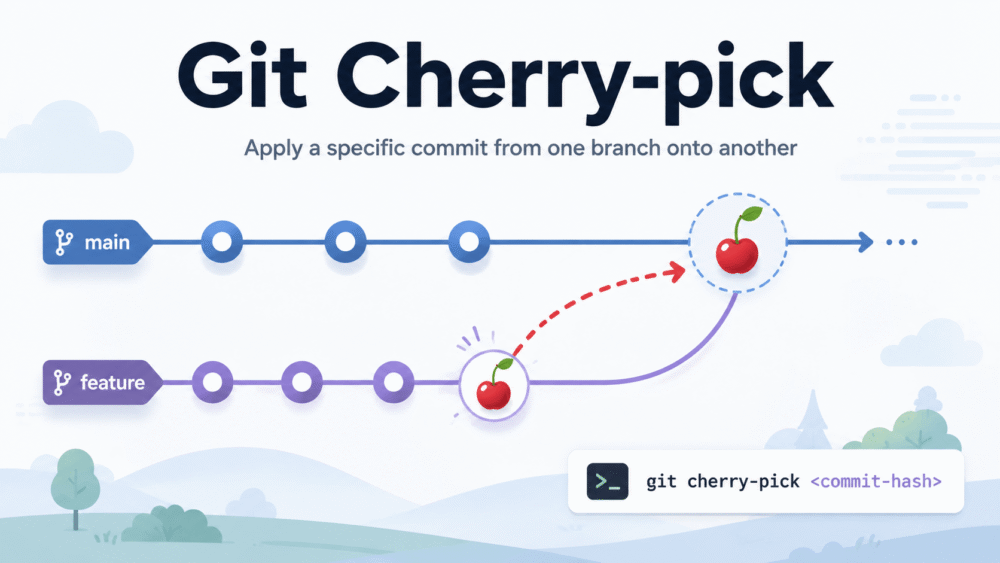
git cherry-pick lets you take a specific commit from one branch and apply it to another. Think of it as copy-paste for commits: instead of merging a whole branch, you pluck just the commits you want.
When you cherry-pick a commit, Git creates a new commit on your current branch with the same changes (and usually the same message). Importantly, the new commit gets a new hash — it's a copy, not a move. The original commit stays right where it was.
When Should You Use It?
Cherry-picking shines in a few common scenarios:
- Hotfixes on the wrong branch: You fixed a bug on a feature branch but need it on
mainright now. - Selective backporting: A release branch needs one specific fix, not everything that's happened since.
- Rescuing work: A commit landed on an abandoned branch, and you want to save it without merging the whole thing.
A word of caution: if you find yourself cherry-picking many commits from the same branch, a merge or rebase is probably the better tool. Cherry-picking is for precision work, not bulk transfers.
The Basic Syntax
First, switch to the branch you want the commit to land on:
git switch mainThen find the hash of the commit you want. git log is your friend here:
git log --oneline feature-branchYou might see something like:
a1b2c3d Fix null pointer exception in checkout
e4f5g6h WIP: refactor payment flow
i7j8k9l Add discount code validation
Now apply the one commit you need:
git cherry-pick a1b2c3dThat's it. Git applies the changes and creates a new commit on main with the same message.
Cherry-Picking Multiple Commits
You have a few options when one commit isn't enough.
Several individual commits:
git cherry-pick a1b2c3d i7j8k9lA range of commits:
git cherry-pick a1b2c3d..i7j8k9lWatch out for a classic gotcha here: the range syntax A..B excludes commit A itself. If you want to include the starting commit, use A^..B instead:
git cherry-pick a1b2c3d^..i7j8k9lHandling Conflicts
Conflicts during a cherry-pick work just like conflicts during a merge. Git will stop, mark the conflicting files, and wait for you to step in:
error: could not apply a1b2c3d... Fix null pointer exception in checkoutWhen this happens:
- Run
git statusto see which files conflict. - Open each file and resolve the conflict markers (
<<<<<<<,=======,>>>>>>>). - Stage the resolved files with
git add <file>. - Continue with
git cherry-pick --continue.
If things go sideways and you'd rather bail out entirely, Git gives you an escape hatch:
git cherry-pick --abortThis returns your branch to the state it was in before you started.
Useful Options to Know
A few flags are worth adding to your toolkit:
| Flag | What it does |
|---|---|
-n (or --no-commit) |
Applies the changes to your working tree without committing. Great for combining several picks into one commit. |
-x |
Appends a line to the commit message noting which commit it was cherry-picked from. Excellent for traceability. |
-e (or --edit) |
Lets you edit the commit message before committing. |
-m 1 |
Required when cherry-picking a merge commit — it tells Git which parent to use as the baseline. |
For example, this is a solid habit for hotfixes:
git cherry-pick -x a1b2c3dThe added (cherry picked from commit a1b2c3d...) line saves future-you a lot of detective work.
Common Pitfalls to Avoid
Duplicate commits. Because cherry-pick creates a copy, the same change can exist on two branches. When those branches eventually merge, Git usually handles it gracefully, but it can produce confusing history or unexpected conflicts. Keep track of what you've picked.
Cherry-picking merge commits. Merge commits need the -m flag and extra thought. As a beginner, it's often simpler to cherry-pick the individual commits from the merged branch instead.
Losing context. A cherry-picked commit may depend on earlier commits you didn't bring over. If your pick fails to compile or behave correctly, check whether you're missing a prerequisite commit.
Wrapping Up
git cherry-pick is one of those commands that feels like a superpower once it clicks. The workflow boils down to three steps: find the commit hash, switch to the target branch, and run the command. Learn to handle conflicts with --continue and --abort, use -x for traceability, and remember that it's a scalpel, not a shovel — for moving lots of commits, merge or rebase will serve you better.
Now go rescue that commit from the wrong branch. You've got this.